
Using Custom Lists on Senioridy
Using Custom Lists to Save Senior Care Providers
Finding the right senior care solution often means comparing several communities or in-home care providers before making a decision. Senioridy’s Custom Lists feature makes that process simple by allowing you to save providers you’re interested in, organize them into personalized lists, and return to them anytime.
Whether you’re researching for yourself or helping a loved one, Custom Lists help you keep everything organized in one place.
Why Use Custom Lists?
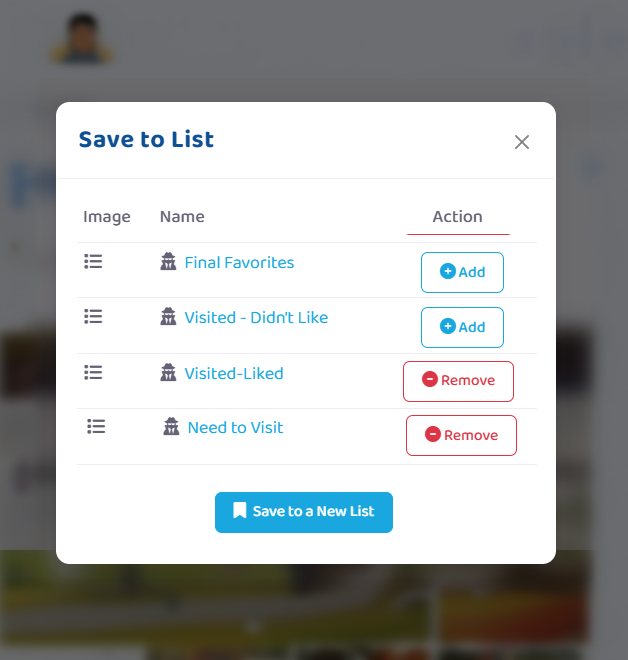
Instead of trying to remember which providers you’ve already viewed, you can save them to one or more lists such as:
- Need to Visit
- Visited
- Liked
- Share with Sister
- For Mom
- For Dad
You can create as many lists as you’d like and organize providers however it makes sense for your family.
How to Create a List
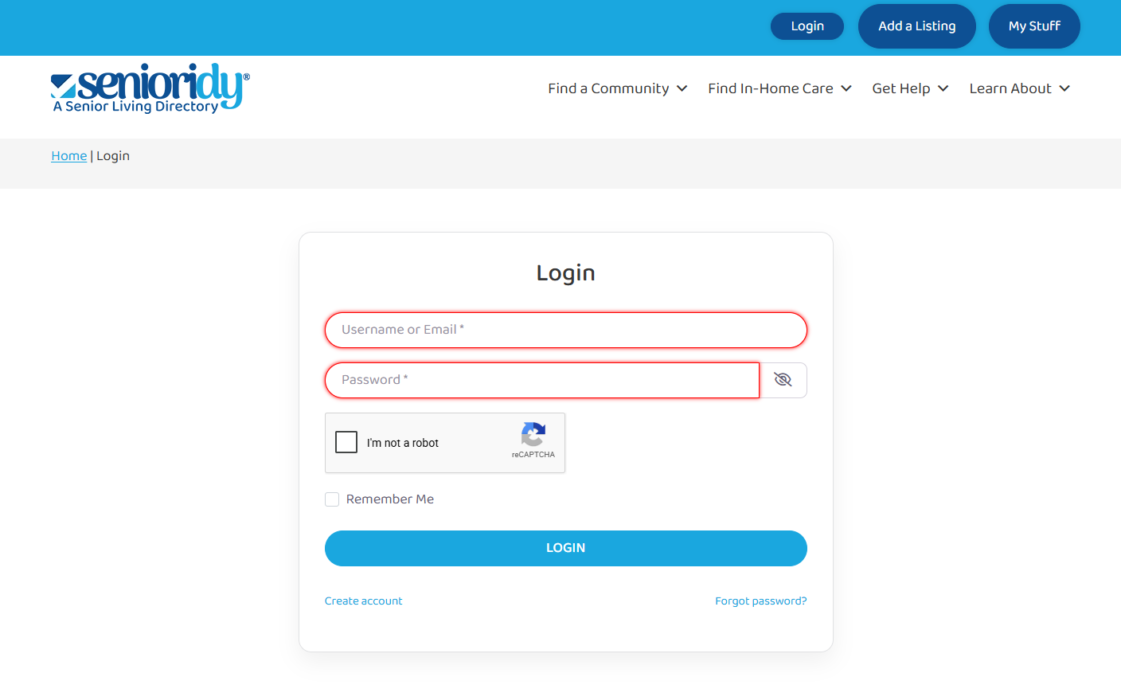
1 Create a free Senioridy account or sign in if you already have one.
2 Browse the Senioridy directory and open any provider listing.
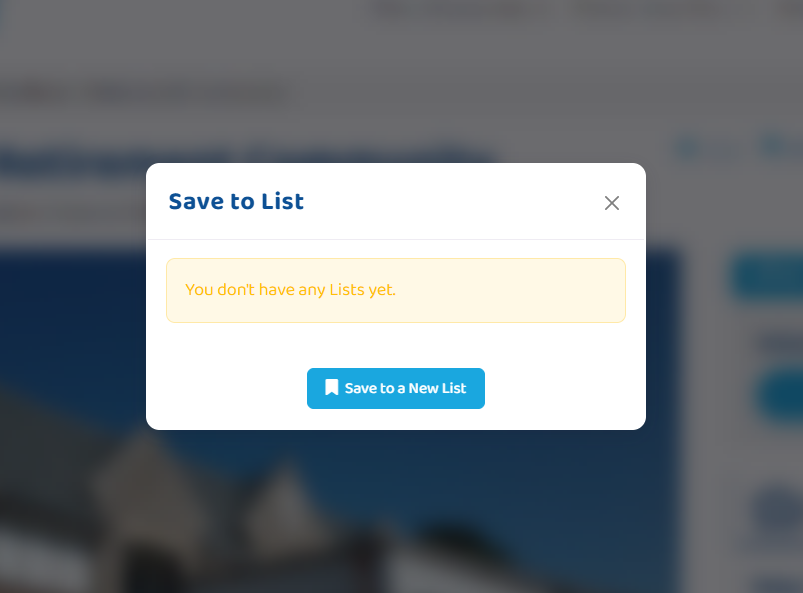
3 Click the + Add to List link.

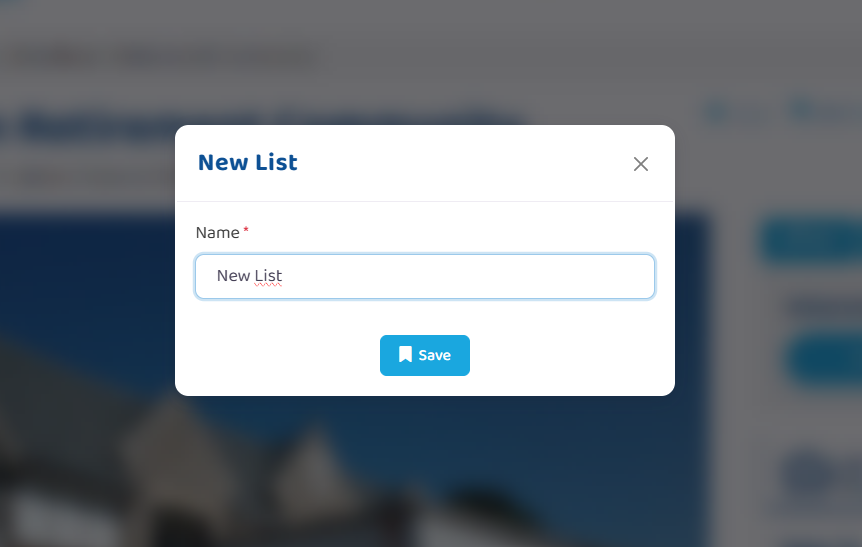
4 Create a new list by clicking on the Save to a New List button in the popup panel.
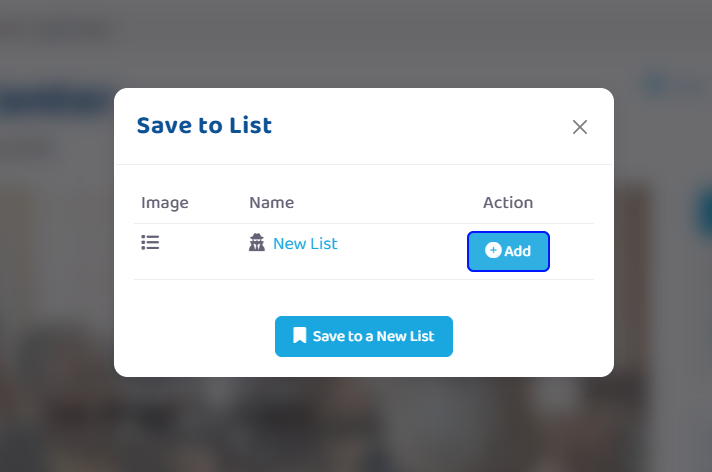
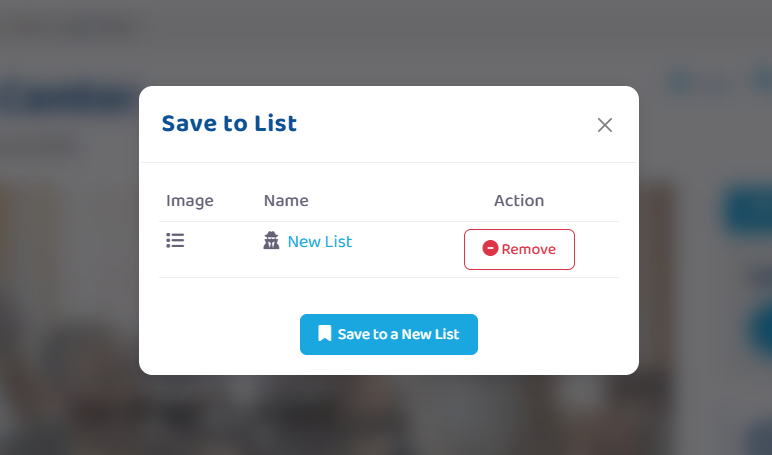
5 Type in the name of the new list and click Save. You will see the name of the list in the left column and the Remove button in the right.
6 You can then view other providers and click the + Add to list link to add those providers to the list or add them to a new list that you create.

You can return to any provider listing and click the Saved link to remove the provider from any list they were added to.
Viewing Your Lists
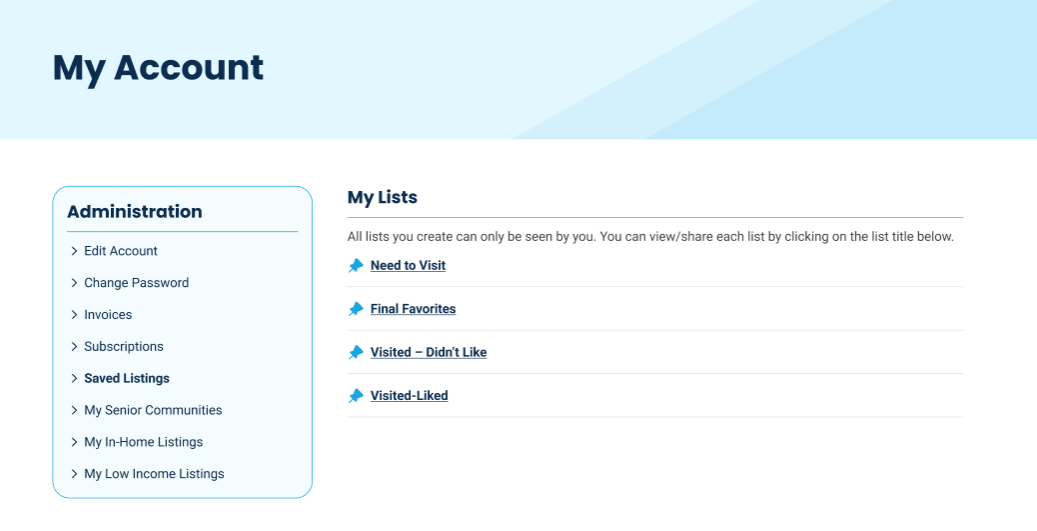
After signing in, click on My Account and select Saved Lists to view all of your custom lists.
From there you can:
- View every list that you have created.
- Click on a list to view all providers in the list.
- Return directly to provider listings to see their info.
You can return to any provider listing and click the +Add to list link to add or remove the provider from any list that you have created.
Sharing a List
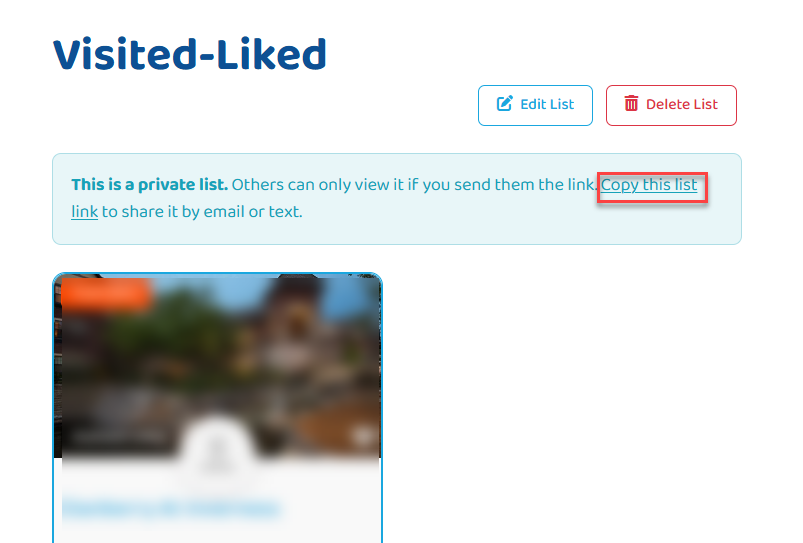
By default, your custom lists are private and can only be viewed by you.
- If you’d like to share a list with a family member, friend, or caregiver, open the list and click Copy this list link. The page link will be copied to your clipboard, allowing you to paste it into an email, text message, or other messaging app.
- Anyone who receives the link can view the list exactly as you’ve organized it, making it easy to discuss and compare senior care options together.
Tips for Getting the Most from Custom Lists
- Create separate lists for different care needs or family members.
- Save providers as you research so you don’t lose them.
- You can use the lists as a workflow to mark providers you have spoken to already, have toured, have liked or not.
- Make sure to update the list to move the provider into the list as you progress through your search journey.
Start Building Your List
The search for senior care doesn’t have to feel overwhelming. With Custom Lists, you can organize your research, compare your options, and make confident decisions at your own pace.